A slow WordPress website is rarely caused by one dramatic failure. More often, several small issues stack up: oversized images, too many scripts, weak caching, slow hosting, a heavy theme, or a database that has accumulated unnecessary work. The result can be a site that looks polished but feels sluggish when a potential customer opens it on a phone, browses a service page, or tries to complete a form.
This guide explains how to diagnose the problem in a sensible order. It is written for Canadian small businesses and professional-service firms that need practical improvements, not a collection of risky “one-click” fixes. The goal is to make the site faster while protecting its design, content, analytics, forms, and search visibility.
Start with evidence, not a plugin
Before changing WordPress, record a baseline. Test the home page, one important service page, one blog post, and any key conversion page such as a contact or checkout page. A single fast home page does not prove that the rest of the site performs well.
PageSpeed Insights is a useful starting point because it reports mobile and desktop results and identifies likely bottlenecks. Read the report as a diagnostic, not as a contest for a perfect score. A page can receive a different lab score between runs because simulated conditions vary. What matters is the pattern: which resources are slow, which elements shift, and which tasks block interaction.
Also separate field data from lab data. Field data reflects eligible real-world Chrome visits over a rolling period, while lab data is a controlled test that helps you reproduce and debug problems. A newer or lower-traffic page may not have enough field data, but its lab diagnostics can still guide technical work.
Record these details before optimization:
- Mobile and desktop results for each representative URL.
- The largest visible element identified as the Largest Contentful Paint element.
- Slow server response, render-blocking files, unused code, or large image warnings.
- Any layout shifts, delayed button responses, or visible loading flashes.
- The page weight and number of requests, if your testing tool exposes them.
This baseline gives you something concrete to compare after each change.
Understand the three Core Web Vitals
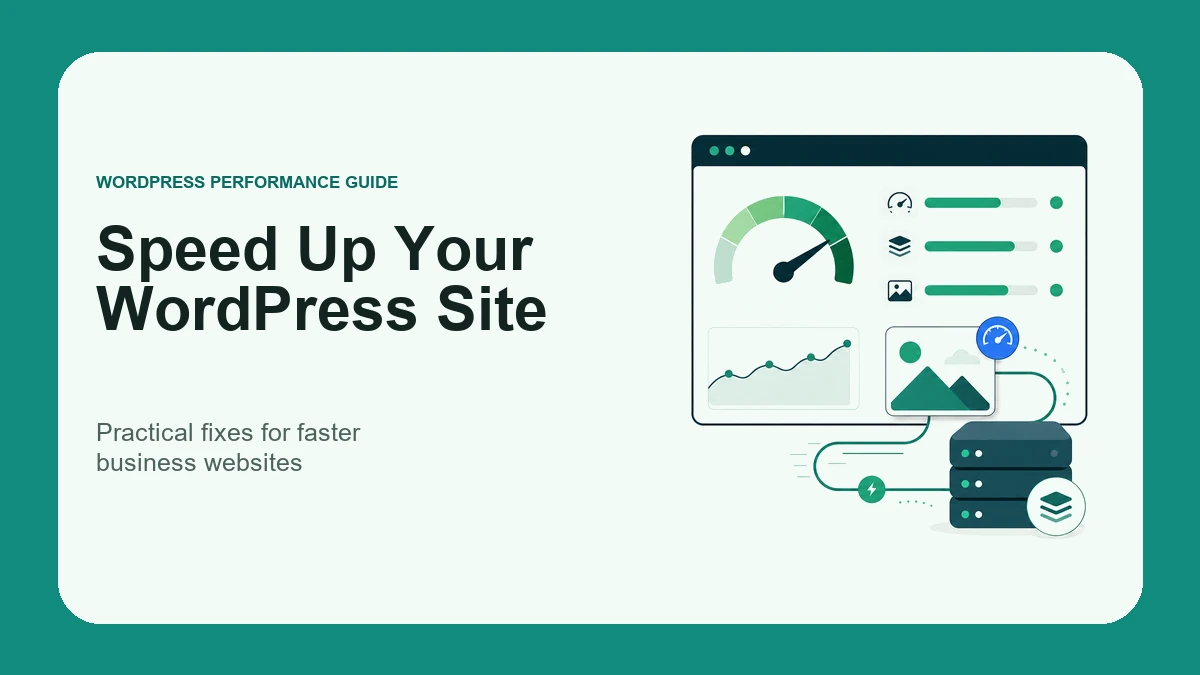
Google’s current Core Web Vitals focus on loading, responsiveness, and visual stability. The official Core Web Vitals thresholds classify a good experience as Largest Contentful Paint (LCP) at 2.5 seconds or less, Interaction to Next Paint (INP) at 200 milliseconds or less, and Cumulative Layout Shift (CLS) at 0.1 or less, evaluated at the 75th percentile.
For a business owner, the labels are less important than what they reveal:
- LCP asks whether the page’s main content appears promptly. A large hero image, slow server, web font, or render-blocking stylesheet can delay it.
- INP asks whether the page responds quickly when someone taps, clicks, or types. Excessive JavaScript and complex third-party tools are common suspects.
- CLS asks whether visible content moves unexpectedly. Images without reserved dimensions, late-loading banners, and font swaps can cause this.
Do not optimize only the metric with the largest red warning. One change can affect several metrics, and an aggressive fix can improve a score while breaking a form or visual layout.
Fix images before chasing advanced tweaks
Images are among the most common sources of unnecessary page weight, especially on portfolio, e-commerce, and service websites. Uploading a 4000-pixel photograph for a card that renders at 600 pixels forces visitors to download more data than the layout needs.
Use the following image workflow:
- Resize the source to an appropriate maximum dimension before upload.
- Export photographs and complex illustrations in an efficient format such as WebP or AVIF when your workflow supports it.
- Compress the file until it is visually clean at the size where it will appear.
- Provide width and height information so the browser can reserve the correct space.
- Lazy-load below-the-fold images, but do not automatically lazy-load the main above-the-fold image.
Check responsive image output as well. WordPress can generate multiple image sizes, but the theme or builder must request suitable versions. If a mobile visitor still receives the largest desktop asset, generating thumbnails alone has not solved the delivery problem.
The featured image and hero area deserve extra attention because they are often candidates for LCP. Keep the visible image sharp, but avoid treating “maximum quality” as “maximum dimensions.”
Improve caching in layers
Caching reduces repeated work, but it is not a substitute for fixing an overloaded page. Think of it in layers:
- Page caching can serve prebuilt HTML instead of rebuilding the page for every visit.
- Browser caching lets repeat visitors reuse static files for an appropriate period.
- Object caching can reduce repeated database work on dynamic sites when the hosting environment supports it.
- A content delivery network can serve static assets from infrastructure closer to visitors and reduce load on the origin.
Configure one caching system intentionally. Multiple optimization plugins that overlap on minification, delayed JavaScript, image lazy loading, or page caching can conflict and make troubleshooting difficult. After every meaningful cache change, clear the relevant caches and test both a logged-out session and an incognito window.
For stores, membership areas, and personalized pages, exclude carts, checkouts, accounts, and other dynamic endpoints where required. A cached page that exposes stale or incorrect user-specific information is not a performance win.
Reduce unnecessary plugin and script work
The number of installed plugins is not a reliable performance metric by itself. One well-built plugin may have little effect, while one poorly configured tool can load large scripts on every page. Review behaviour, not just the count.
Create an inventory of:
- Plugins that load front-end CSS or JavaScript.
- Marketing pixels, chat widgets, video embeds, heatmaps, and scheduling tools.
- Features that duplicate functionality already provided by the theme, builder, host, or another plugin.
- Scripts loaded site-wide even though they are needed on only one page.
Remove software only after confirming that it is unused and after creating a restorable backup. For necessary third-party tools, consider whether they can load after consent, after interaction, or only on relevant pages. Test analytics and conversions after changing script timing; a faster page with broken measurement creates a different business problem.
If the current site has accumulated overlapping design tools or add-ons, a focused website redesign assessment can help determine whether targeted cleanup or a broader rebuild is more economical.
Check hosting and server response
Front-end optimization cannot fully compensate for consistently slow server response. Hosting quality, available resources, PHP configuration, database performance, and traffic patterns all influence how quickly WordPress begins returning a page.
Investigate the server when:
- The initial document is slow before images and scripts begin loading.
- Uncached pages are consistently much slower than cached ones.
- The dashboard is slow as well as the public site.
- Resource limits, errors, or timeouts appear during ordinary traffic.
- Performance degrades sharply during backups, imports, or scheduled tasks.
Use a current supported PHP version that is compatible with the site, keep WordPress and extensions maintained, and review error logs before assuming that more server power is the only answer. The WordPress performance handbook also recommends considering hosting, software versions, caching, content delivery, compression, and database optimization as parts of the same performance system.
Clean the database carefully
WordPress databases can collect revisions, expired transients, old plugin tables, and other data over time. Some cleanup is useful, but indiscriminate deletion can remove information that a plugin or editorial workflow still needs.
Before database work:
- Create and verify a complete backup.
- Identify which tables belong to active plugins.
- Measure table size and query behaviour instead of deleting by guesswork.
- Use staging for significant cleanup or migrations.
- Confirm forms, search, checkout, and administrative workflows afterward.
Routine maintenance should be documented. Nexxen Studio’s guide to maintaining a WordPress website after launch explains how performance checks fit alongside updates, backups, security, and content review.
Keep the design system efficient
Page builders can produce fast websites when their components and assets are managed deliberately. Problems often appear when every page introduces one-off styles, repeated font files, several animation libraries, deeply nested layouts, or duplicate widgets.
Reuse global classes and components, remove unused font weights, keep animation purposeful, and avoid loading an entire library for one minor effect. When choosing between builders, consider output, workflow, maintainability, and the team’s ability to build consistently; the Bricks Builder and Elementor comparison outlines those broader trade-offs.
Performance work should preserve accessibility. Do not remove visible focus states, disable zoom, hide meaningful text, or replace semantic controls with lighter but inaccessible substitutes. A clean component system usually improves both speed and maintainability.
Use a safe optimization order
Changing many settings at once makes it difficult to identify regressions. A safer sequence is:
- Back up the site and record baseline results.
- Fix oversized and poorly delivered images.
- Confirm page caching and browser caching.
- Remove or conditionally load unnecessary scripts and plugins.
- Investigate slow server response and database work.
- Simplify repeated layout, font, and animation overhead.
- Retest the same URLs on mobile and desktop.
- Check forms, navigation, search, analytics, and any checkout flow.
Apply one logical group of changes at a time. Compare results with the baseline, keep the changes that help, and revert anything that introduces instability.
Know when professional help is worthwhile
A business owner can resize images, remove unused tools, and run basic tests. Professional help becomes valuable when the bottleneck involves server configuration, code execution, a complex builder setup, a dynamic store, or several overlapping optimization systems.
The best engagement starts with an audit and a prioritized action list. That makes it possible to distinguish quick wins from structural work and prevents an optimization plugin from masking deeper problems. Nexxen Studio’s website maintenance and performance services can support a focused cleanup or an ongoing improvement plan.
Make speed a repeatable business process
WordPress speed optimization is not a one-time score chase. New images, plugins, campaigns, tracking tools, and design changes can gradually reintroduce weight. Add performance checks to the publishing and maintenance process so problems are caught before they spread across the site.
Test representative pages, document important settings, and review performance after major releases. If your Canadian business needs help turning a slow or fragile WordPress site into a faster, easier-to-maintain platform, contact Nexxen Studio to discuss a performance audit.